

Route test before connecting
Ping, Jitter and Packet Loss of each route before you Connect, and make your choice with numbers.
Pingura is not just a connection route; test the routes before the game, watch the network status live while connected, and get your system and connection ready for gaming with Network Analyzer, DNS Optimizer and the PC Boost tools.
The Pingura Smart DNS service can only be used from the IP you register yourself in the account panel. First sign in and register your current IP, then use these addresses. Click an address to copy it.
94.183.163.43109.122.251.92https://dns.pingura.ir/dns-querydns.pingura.irTo use Smart DNS you first have to register the IP you connect from in the account panel; whenever your IP changes (for exampleً when connecting from somewhere else) register it again in the same place.
Besides game connection, the new Pingura version brings network diagnostic tools and Windows optimization into the app itself, so you get a clearer picture of your connection before, during and after the game.
Ping, Jitter and Packet Loss of each route before you Connect, and make your choice with numbers.
Only the selected games and apps enter the tunnel; the browser and other traffic can stay on the normal route.
Check the raw internet without building a tunnel; real-time monitoring, Scanner, Ping for Games and the Ping/TCPing/MTR tools are available.
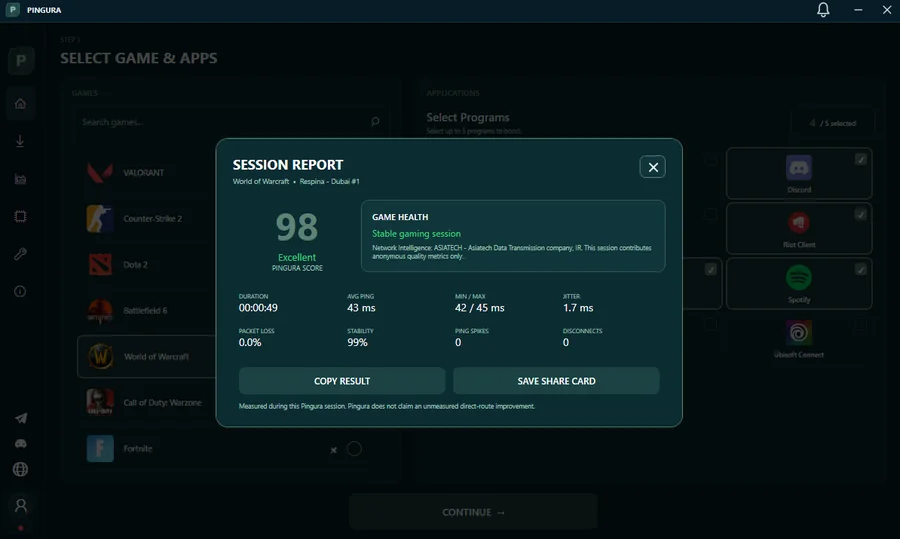
After disconnecting, see the average and range of Ping, Jitter, Packet Loss, Stability, Spikes and Disconnects of that same session in one place.
A set of System Tweaks to cut background tasks and prepare Windows settings for running the game.
See memory usage, clean up manually, or set Automation to run when a game connection starts and on schedules.
DNS ProviderTest and rank them, pick the fastest option, or restore Windows DNS to the previous state.
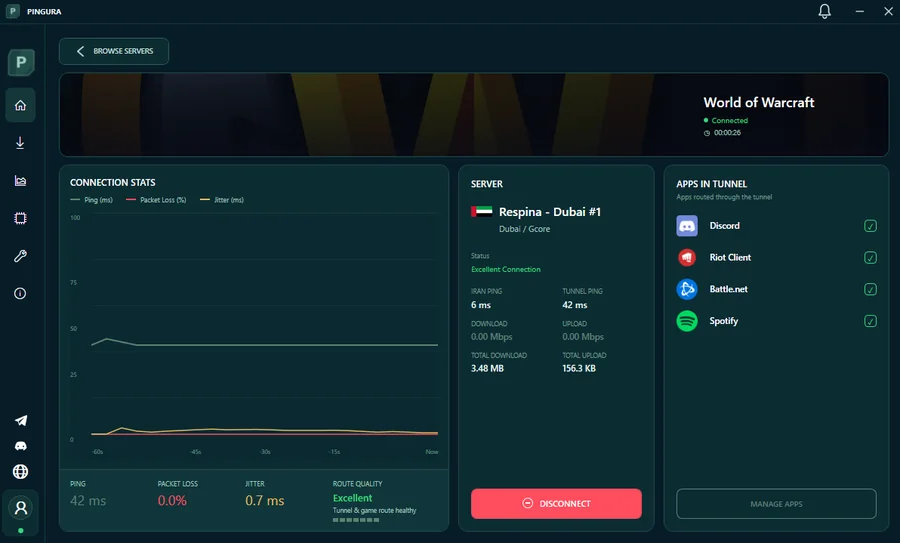
Ping Follow the tunnel, Packet Loss, Jitter, route quality, traffic and apps inside the tunnel during the connection.
Instead of guessing, Pingura puts the route, the internet and the result of every connection in front of you.
Compare routes by Ping, Jitter and Packet Loss.
Send only the selected games and apps into the Pingura route.
Follow route quality and network status during the game.
After every session, see a full connection quality report.
Before connecting, Pingura lets you compare different routes with numbers; then you take only the route that gave a better result for your connection.

See the main sections of Pingura in the tabs below. Each tab shows a real view of the app and the most important features of that section.
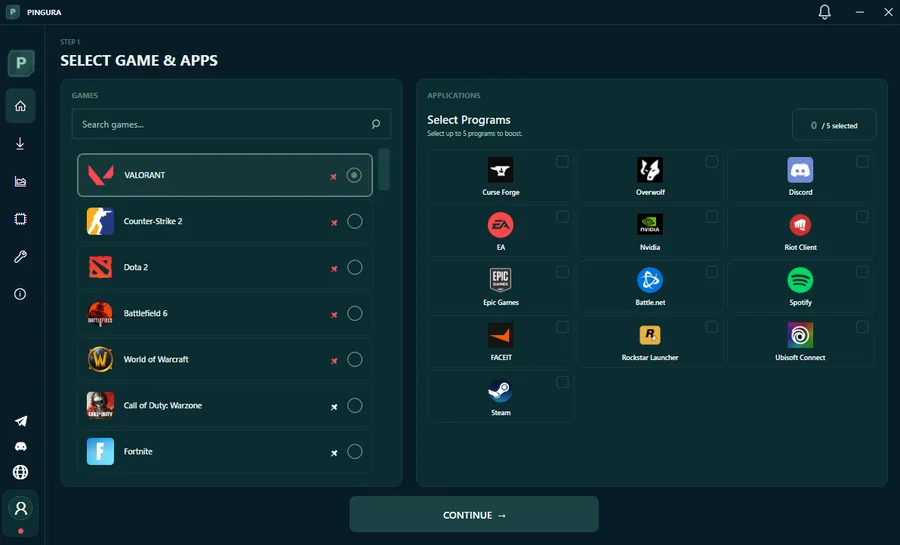
Choose the games and apps you need and, before connecting, compare the routes by Ping, Jitter and Packet Loss. Only the selected traffic enters the tunnel.
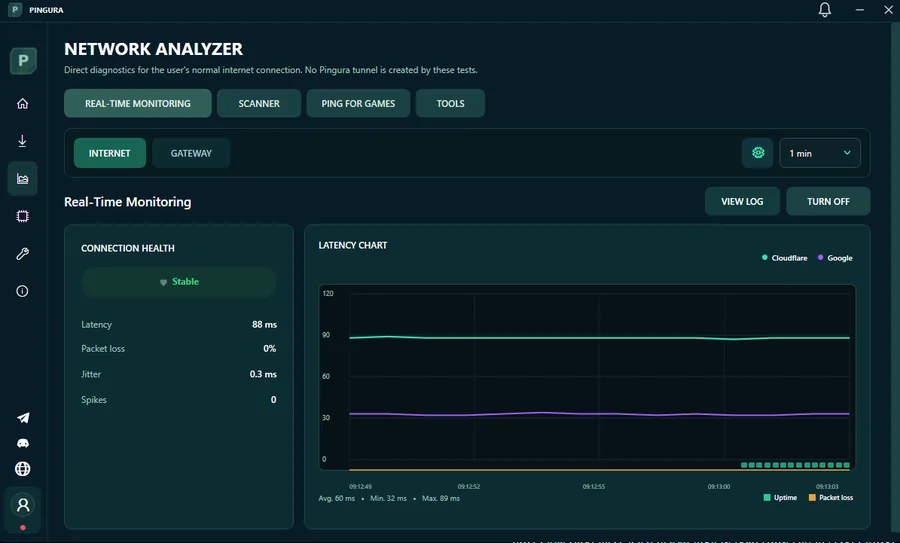
Network Analyzer Works on the raw internet and, without a tunnel, checks Latency, Packet Loss, Jitter and Spikes.
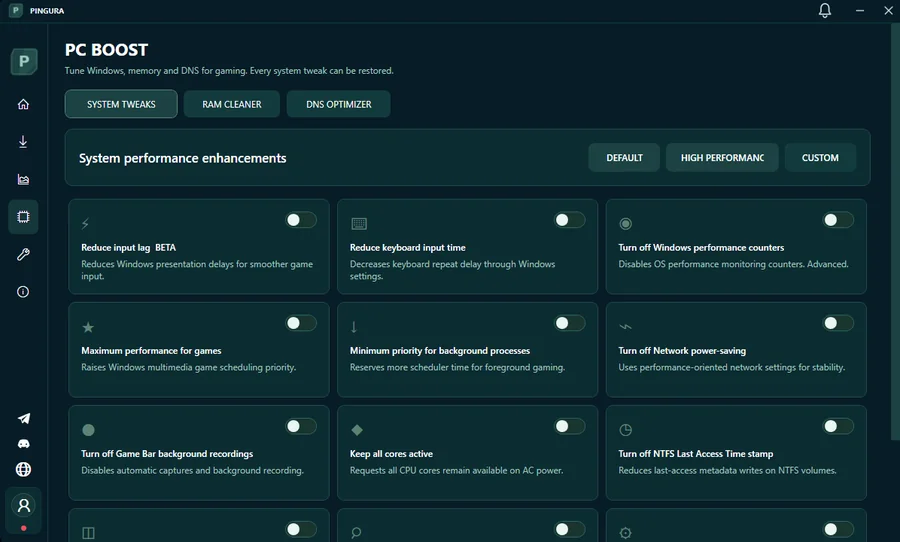
System Tweaks, RAM Cleaner and DNS Optimizer are placed side by side so you can control the important Windows and network settings from one place.
After Disconnect, the quality of that session is summarized with the Pingura Score, Game Health and detailed network stats.
Auto Reconnect, Kill Switch, MTU Optimization, Minimize to Tray and the behavior of linked apps can be controlled on one page.
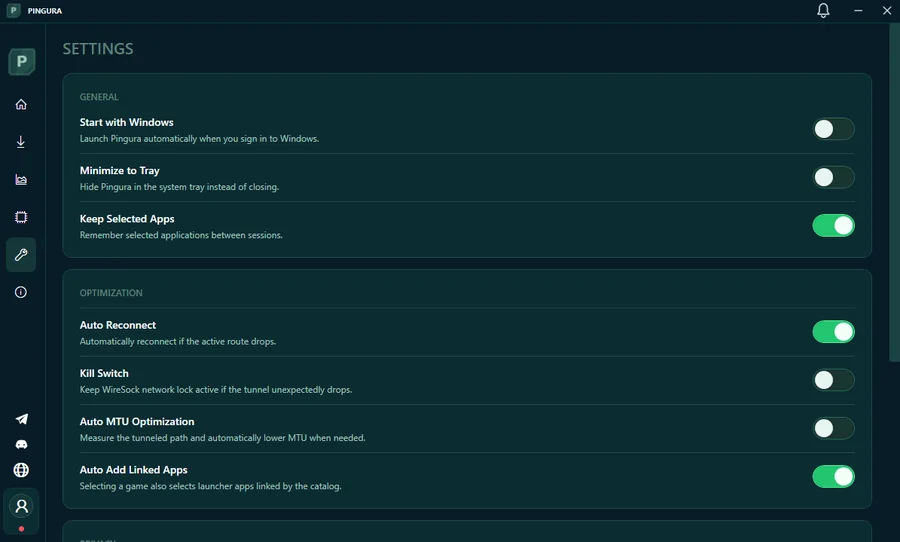
Keep launchers and downloads apart from the main game route.
Ping, Jitter and Loss of the game’s real destinations.
Providerand apply the fastest result on Windows.
Do you have Windows 10 or 11, 64-bit? Then you are almostً ready. Get the installer and go through the steps.
This file is the official Windows version; install it, sign in to your account and go to the route test.
After installing, sign in with the same account, choose a game, test the servers and connect.
Run the installer and confirm the administrator access prompt. If a network prerequisite is needed, the app guides you.
Sign in with your username, email or mobile number and password. The account must have a verified mobile number.
Choose the games and apps you want, then test the servers and take the best route.
Press the connect button and check Ping, Jitter, Packet Loss and tunnel traffic from the live dashboard.
If you are looking for a more stable ping in online games, it is important to know the problem is not always internet speed. Sometimes the route between your internet and the game server is not good. Pingura exactlyً focuses on this part: you test the routes and choose the option that gives your connection a better result.
We are not going to promise you “zero ping”. What you get is a real tool for comparing routes; Ping, Jitter and Packet Loss before connecting and live status after connecting.
We have written a separate guide for each game: which metric matters more, how to test the route and which tips reduce lag. The result depends on your internet and route, and no specific number is guaranteed.
Plans only differ in duration; we do not give you a half version of Pingura’s features.
You can use Pingura without a subscription too; you get a free quota every month.
30 days of full access for 1 user with unlimited volume
The same account you create here is used in the app too. Verify your number and your 4-day trial starts.
Send your personal Pingura link to your friends. Every friend who signs up with your link and completes their first purchase, 7 days of subscription is added to your account.
Complete daily and weekly quests, keep your streak and spend your coins inside the Pingura app on subscriptions, cosmetics and other rewards.
Pingura tests the available routes with Ping, Jitter and Packet Loss so you can choose a better route for your own connection. The result can differ for every internet connection and every game.
No. With selective tunneling only the games and apps you chose enter the Pingura route; the rest of your internet can stay on its normal route.
Yes. The list of supported games is always shown inside the app itself and you can choose the game you want from there.
Yes. Server testing is built for exactly that; you see Ping, Jitter and Packet Loss and do not have to pick a server by luck.
Pingura’s goal is not to increase your nominal internet speed; the focus is on the game traffic route and the quality of the connection to the game’s destination.
Yes. The same Pingura account you create on the website is used in the app too.
Network Analyzer It is designed to diagnose your normal internet, and the tests in this section run without building a Pingura tunnel. You can check Latency, Packet Loss, Jitter, Gateway and the Ping, TCPing and MTR tools.
PC Boost It includes System Tweaks, RAM Cleaner and DNS Optimizer. System Tweaks changes are reversible and you can enable only the options you need.
After the connection ends, the report of that same session shows Avg and Min/Max Ping, Jitter, Packet Loss, Stability, Spikes and Disconnects, and you can also Copy Result or save a Share Card.
Yes, after creating an account and verifying your mobile number, the 4-day free trial is activated so you can see the result on your own internet and game.